Ask WeatherWRX & AI Keys
Connect your favorite AI to WeatherWRX in about two minutes
What is Ask WeatherWRX?
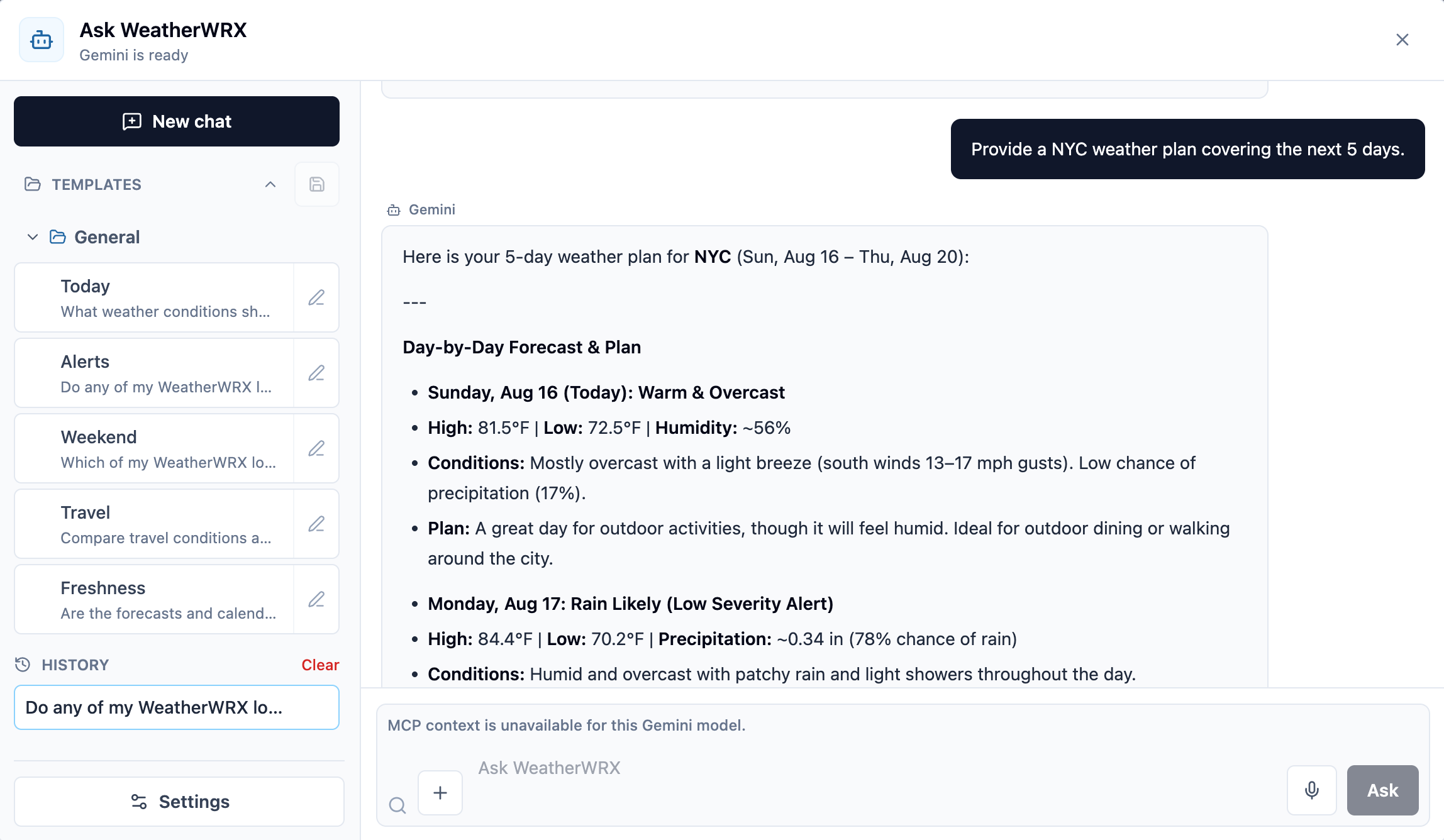
Ask WeatherWRX is the AI assistant built into the Forecast Center. It reads your tracked locations, forecasts, alerts, and calendar context, and answers planning questions in plain language — from a quick morning briefing to a drafted weather update for your team.
Questions people ask it:
- Which of my job sites face weather delays this week, and when?
- Draft a short weather update email for my crew about this week's site conditions.
- Compare pressure and wind trends across my locations over the next 72 hours — anything that suggests a front moving through?
- How should I dress the kids for school tomorrow morning?
Why you bring your own AI — and what an API key is
Ask WeatherWRX runs on an AI service you choose and control ("bring your own key", or BYOK). You pick the provider, you can change it any time, and your questions are only ever sent when you ask them. WeatherWRX encrypts saved keys and uses them only for requests you initiate; provider usage may be billed to your account.
An API key is like a password that lets WeatherWRX send your questions to an AI service — Google Gemini, Anthropic Claude, or OpenAI — using your own account. You create the key on the provider's site and paste it into WeatherWRX once. WeatherWRX encrypts saved keys and uses them only for requests you initiate; provider usage may be billed to your account.
Step 1 — Create your key
Pick one provider below. Google Gemini is the quickest start — Google's no-cost Gemini tier lets you try Ask WeatherWRX without setting up billing (check current terms on Google's site).
Google Gemini
No-cost tier available- 1Open Google AI Studio and sign in with any Google account.
- 2Choose "Create API key" (or "Get API key") on the API keys page.
- 3Copy the key. Prefer a fresh key just for WeatherWRX, and restrict it where possible.
Provider docs: Gemini API key docs
Anthropic Claude
Prepaid credits- 1Sign in (or create an account) at the Anthropic Console.
- 2New accounts add prepaid credits under Billing before keys can make requests.
- 3Open Settings → API keys, choose "Create Key", and copy it — Anthropic shows the key only once.
Provider docs: Claude API overview
OpenAI
Pay as you go- 1Sign in at the OpenAI Platform with your existing OpenAI account.
- 2Make sure billing is set up for API usage (separate from a ChatGPT subscription).
- 3Open the API keys page, choose "Create new secret key", and copy it — it is shown only once.
Provider docs: OpenAI quickstart · OpenAI key safety
Step 2 — Connect it to WeatherWRX
- 1Sign in to WeatherWRX and open Settings → AI (a Connect button inside Ask WeatherWRX opens the same place with your provider preselected).
- 2Choose your provider, paste the key, and tick the key-safety acknowledgement — Save stays disabled until you do.
- 3Save. WeatherWRX checks the key with your provider and loads the models it can use — the newest is preselected.
- 4Open Ask WeatherWRX from the sparkles button in the header. The window subtitle now reads that your provider is ready — ask away.
You'll be asked to sign in first if you aren't already.
What do questions cost?
Typical Ask WeatherWRX questions cost fractions of a cent to a few cents each, billed by your provider to your account — WeatherWRX adds nothing on top. Google's no-cost Gemini tier covers light use. Provider pricing and tier terms change, so check your provider's current pricing page, and use the spend limits or usage dashboards every provider offers.
How your key is handled
Saved keys are encrypted at rest and spend only while you are using AI features — asking questions in Ask WeatherWRX, or viewing the Forecast Briefing, whose AI synopsis is generated with your key while that view is open. Nothing spends from your key while you are away, and the emailed briefing digest does not use it. A saved key is never displayed again, and you can replace or remove it in Settings → AI at any time.
Troubleshooting
"Invalid API key" or an authentication error
The key was mistyped, truncated, or revoked. Copy it again end to end from the provider console (keys are long), or create a fresh key and save it in Settings → AI.
Quota, credit, or billing errors
Your provider account is out of credit or has no billing set up. Add credits (Anthropic) or configure billing (OpenAI), or stay within Google's no-cost Gemini tier limits. WeatherWRX never bills you for AI usage — your provider does.
A model error after connecting
Open Settings → AI and pick a different model from the list your key returns — providers retire model versions over time.
You pasted the key somewhere public or shared it by mistake
Rotate it: delete the key in the provider console, create a new one, and save the new key in Settings → AI. WeatherWRX stores keys encrypted and never displays a saved key again.
Still stuck? Contact our support team